
Android, Raspberry Pi and Ktor - Expanding Capabilities
Project Overview
The goal of this experiment was to explore a full-stack architecture by hosting both an Android UI (Jetpack Compose) and a backend server (Ktor) within a single project on a Raspberry Pi.
At the time of development, Kotlin Multiplatform (KMP) was still in its early, unstable stages, so I was trying to find an alternative ways to share code and logic between a client and a server on a dedicated hardware device.
Benefits of running full stack on Raspberry Pi
Full stack in a single project
Streamlined deployment - No need to switch between IDEs or manage separate projects.
Sharing code - similar to KMP I was able to share data classes and some business logic between the front-end and server.
Re-using persistence layer - I used Room in both the UI and server with Mutex, which worked well for simple scenarios.
Availability and Practical use cases
No Li-ion battery - the project was running 24h with an always-on display, so there was no risk of battery overheating or degrading.
Restful API - there are number of use cases of running restful api on the local network, but my favourite was sending reminder messages or task notes from my phone and displaying them as info banners.
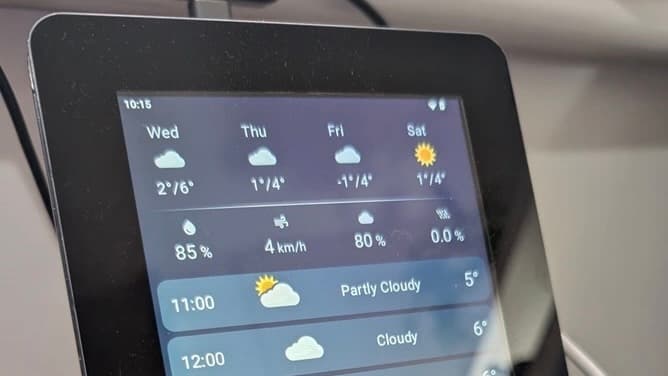
Interactive Dashboard - My favourite dashboard is a weather forecast with reminders and calendar events. Since I’m using 7.5 Inch touch-based display, it is possible to switch between different dashboards.
Which Build to choose from?
There are at least two methods for installing Android OS on the Raspberry Pi.
Konstakang provides AOSP and LineageOS builds with additional features and enhancements.
Emteria provides Emteria.OS, which is a commercial solution, though it is free for personal use.
Numerous online tutorials detail the installation process for each version, so I will not discuss that here. I decided to use Emteria.OS, which I found to be more stable than LineageOS-based builds on Raspberry Pi. However, if you plan to connect sensors, cameras, or other peripherals, Konstakang's builds might be a better choice.
You can run both a Ktor service and a UI within the same Android application on a Raspberry Pi. However, for administrative tasks like database updates or Ktor service maintenance, it's beneficial to create separate "admin" and "user" build flavors. This approach allows you to isolate and manage admin-specific use cases in a dedicated application, ensuring a cleaner separation of concerns.
productFlavors {
   create("server") {
       isDefault = true
       dimension = "environment"
       buildConfigField("String", "ENVIRONMENT", "\"server\"")
   }
   create("admin") {
       dimension = "environment"
       buildConfigField("String", "ENVIRONMENT", "\"admin\"")
   }
}
Energy consumption
A Raspberry Pi with a 7.5-inch screen, running continuously, typically consumes between 6.0W and 6.5W. Occasional power spikes may occur depending on the running processes.

Pre-installation tasks
Stay Awake
To prevent the screen from entering sleep mode, enable the 'Stay Awake' setting. While not strictly required, this ensures the UI remains continuously visible, which is desirable for this application.

IP Binding
Modern routers usually retain IP-to-MAC address mappings, reassigning the same IP when a device reconnects. However, older routers might assign a new IP to your Raspberry Pi (RP) if it goes offline and the DHCP lease expires. To prevent this, manually bind a static IP address to the RP's MAC address.

Disable Pause App Activity
While a foreground service inherently minimises pausing, disabling 'Pause app activity if unused' provides an additional layer of reliability.

Enable Notifications
While the service may function with notifications disabled, enabling them provides valuable insight into the currently running services.

Add User Permissions in Manifest
Since I'm going to connect to internet and run a foreground service with notifications, few permissions in the app manifest must be included.

Add Foreground Service in Manifest
Define a foreground service with a type "dataSync", which handles data transfer operations, such as data uploading or downloading, fetching data or local file processing.

Enable Insecure Connections
Since I’m just testing and playing around on my local network right now, skipping a certificate setup for insecure connections is fine. Create a network_security_config.xml file in the Android project's xml folder and specify the Raspberry Pi's IP address to allow these insecure connections for development purposes.

Next - in the manifest, add this file under networkSecurityConfig

Create a Foreground Service
Creating a foreground service with a restart mechanism ensures the server will run continuously. The order matters here so…
Create a notification channel.
Build a notification.
Start a foreground service.
If the service is killed by the system, it will be recreated and onStartCommand() will be called with a null intent.
private fun createNotificationChannel() {
    val serviceChannel = NotificationChannel(
        CHANNEL_ID,
        "Server Service Channel",
        NotificationManager.IMPORTANCE_DEFAULT
    )
    val manager = getSystemService(NOTIFICATION_SERVICE) as NotificationManager
    manager.createNotificationChannel(serviceChannel)
}

private fun buildNotification(): Notification {
    return NotificationCompat.Builder(this, CHANNEL_ID)
        .setContentTitle("Server Service")
        .setContentText("Running...")
         setSmallIcon(R.drawable.ic_download)
        .build()
}

private fun startForegroundService() {
    startForeground(NOTIFICATION_ID, buildNotification())
}

companion object {
    const val CHANNEL_ID = "ServerServiceChannel"
    const val NOTIFICATION_ID = 1
}
Restart Foreground Service
When the system restarts a service that returned START_STICKY, it calls onCreate() and then onStartCommand() again. In this restarted onStartCommand() call, the intent parameter will be null (there should not be any pending start commands here). Then createNotificationChannel() and startForegroundService() will re-establish the service as a foreground service with its persistent notification.
override fun onStartCommand(intent: Intent?, flags: Int, startId: Int): Int {
    Log.d("ServerService", "restarting server service")
    startForegroundService()
    return START_STICKY
}
Run the Foreground Service
The easiest way is to start the service from the main activity in the onCrated() method.
private fun runRestfulService() {
      val intent = Intent(this, ServerService::class.java)
      startService(intent)
}
At this point you should see a notification from the foreground service informing about the running server.

Data aggregation and display
Before we jump into the service portion, I want to emphasize that aggregating and displaying data from APIs, while running the service concurrently, is perfectly acceptable with this setup. This is a key benefit of running an Android and Ktor service simultaneously.

Local CRUD operations
While my Google and Outlook calendars contain numerous events, not all include notifications, making it easy to overlook some. Having a single home for all these events would definitely help me stay on top of things.
To implement this, I created a POST endpoint in the service that accepts multiple events. When it comes to a concurrent writes to the database, several alternative solutions exist:
PostgreSQL, which utilizes Multiversion Concurrency Control (MVCC).
MongoDB, which employs MVCC and internal locking mechanisms.
Firestore, which implements optimistic concurrency.
A simpler alternative when using Room is to use a Mutex. If data loss during unexpected service termination is acceptable, periodically or conditionally (e.g., when a ConcurrentHashMap reaches a specific size) persisting data from a ConcurrentHashMap to the Room database is another viable option.
The GET endpoint retrieves all events from the database, splits them into old and new based on the current time, deletes old events in a thread-safe way, and responds with the list of new (upcoming) events.
get {
     try {
         val now = Clock.System.now()
         val events = eventDao.getEvents().map { it.toEventDto() }
         val oldEvents = events.filter { it.date < now }
          val newEvents = events.filter { it.date >= now }

          // Delete old events from the database in a batch operation
          if (oldEvents.isNotEmpty()) {
                eventMutex.withLock {
                    oldEvents.map { it.id }.forEach { id ->
                        eventDao.deleteEvent(id)
                    }
               }
          }

          call.respond(newEvents)
     } catch (e: Exception) {
          call.respond(HttpStatusCode.InternalServerError, "Failed to retrieve events: ${e.message}")
     }
  }
We also use eventMutex.withLock for post("/single") and post("/multiple") POST events endpoints to ensure thread-safe operations when writing to the database.
post("/multiple") {
    try {
        val newEvents = call.receive<List<EventDto>>()
        eventMutex.withLock {
            eventDao.upsertEvents(newEvents.map { it.toEventEntity() })
        }
        call.respond(HttpStatusCode.Created)
    } catch (e: IllegalStateException) {
        call.respond(HttpStatusCode.BadRequest, "Invalid event data: ${e.message}")
    } catch (e: JsonConvertException) {
        call.respond(HttpStatusCode.BadRequest, "Invalid JSON format: ${e.message}")
    } catch (e: Exception) {
        call.respond(HttpStatusCode.InternalServerError, "Failed to save events: ${e.message}")
    }
}
Test POST with Postman
Let’s test the POST by generating a few sample events in Postman.

I listed events below the weather forecast, but you can create a separate dashboard just for the events.

Upload Images
There are at least four ways of receiving images in Ktor. There are pros and cons of each method, but I decided to use receiveMultipart(), which is scalable since it allows iterating through the individual parts of the requests, and process each part separately if needed.
I also tried using receiveChannel(), which is simpler, but highly efficient way of receiving larger images. This approach uses Kotlin coroutines and channels for asynchronous and non-blocking I/O
receive<ByteArray>() - Simple to use. Loads entire ByteArray in memory. Best for smaller images.
receiveStream() – More efficient than receive. Best for medium size images.
receiveChannel() – Most efficient. Requires a coroutine scope. Best for large images.
receiveMultipart() – Best for complex form submissions involving files.
We can get a MultiPartData with the call.receiveMultipart() and then iterate over each part and processes it if it's a PartData.FileItem type. Each part is disposed of after processing to free resources.
private fun io.ktor.server.routing.Route.setupFilesRoutes() {
        route("/files") {
            post("/upload/photo") {
                try {
                    val multipart = call.receiveMultipart()
                    multipart.forEachPart { part ->
                        if (part is PartData.FileItem) {
                            handlePhotoUpload(part)
                        }
                        part.dispose() // Ensure all parts are disposed
                    }
                    call.respond(HttpStatusCode.OK, "File uploaded")
                } catch (e: Exception) {
                    call.respond(HttpStatusCode.InternalServerError, "Failed to upload file: ${e.message}")
                }
            }
        }
    }
In the Postman, select "Body" and "form-data". Then select am image file you want to send and add short description. Next, send the image.

You can preview the uploaded image in the device, by going to Device Explorer -> Data -> Data -> com.yourapp.name -> files

Websockets
For scenarios requiring immediate reception or broadcast of updated data upon change, WebSockets offer an effective solution. This is particularly beneficial when connecting a sensor to a Raspberry Pi and needing to push value changes to the client, either upon any change or conditionally to reflect specific alterations.
For the sake of example, I'll demonstrate a chat application between two or more users instead of broadcasting sensor values.
webSocket("/chat") {
    val username = call.request.queryParameters["username"] ?: run {
        this.close(CloseReason(CloseReason.Codes.CANNOT_ACCEPT, "No username"))
        return@webSocket
    }

    users[username] = this
    send(Frame.Text("You are connected! There are ${users.size} users here."))

    try {
        incoming.consumeEach { frame: Frame ->
            if (frame is Frame.Text) {
                try {
                    val msg = Json.decodeFromString<MessageDto>(frame.readText())
                    if (msg.to.isNullOrBlank()) {
                        users.values.forEach { usr ->
                            usr.send(Frame.Text("[$username]: ${msg.text}"))
                        }
                    } else {
                        users[msg.to]?.send(Frame.Text("[$username]: ${msg.text}"))
                    }
                } catch (e: Exception) {
                    send(Frame.Text("Error processing message: ${e.message}"))
                }
            }
        }
    } finally {
        users.remove(username)
        this.close()
    }
}
In the Postman select New -> WebSocket, and enter "ws://ip_address/end_point username=your_name" in the address bar. Then click "Connect".
In the body, enter the message you want to send to the user, and click "Send".

Sending a message to a user.
You can also send a message to a group chat.

Send an image to a group chat
I found broadcasting images to be a more engaging than sending messages. To test this approach in Postman, an image must be converted to Base64 binary encoding. Subsequently, the message type in Postman should be set to Binary/Base64 before sending the message. It is crucial to avoid sending excessively large images, as this can result in a substantial binary message that may be discarded during transmission.

Sending an image in binary base64 format

Receive an image via Websockets
Hosting a simple website
If you want to host a simple website, you can do this by creating a resources (if not existing already) and adding a subfolder for html, js and css files. You can access the site at http://[your_server_IP_address]:8080/.
get("/") {
     val indexFile = this.javaClass.classLoader?.getResource("serveradmin/dist/index.html")
     if (indexFile != null) {
         call.respondText(indexFile.readText(), ContentType.Text.Html)
     } else {
         val altFile = File(filesDir, "serveradmin/dist/index.html")
         if (altFile.exists()) {
             call.respondText(altFile.readText(), ContentType.Text.Html)
         } else {
             call.respond(HttpStatusCode.NotFound, "index.html not found")
         }
     }
 }
 staticResources("/", "serveradmin/dist") {
     default("index.html")
 }

Create a resources folder with a subfolder for HTML, JS, and CSS files

Problems
Limited hardware support - many hardware components attached to the Raspberry Pi are not supported by Android OS. For example, I couldn't get the camera to work.
Hard to debug - The Android Studio recognised the device couple of times only.The wireless debugging works sporadically. I had to restart the debugging multiple times to make it work.This is despite enabling both Wireless Debugging and ADB over Ethernet in Amteria settings. I had to develop using an emulator, and then spend significant amount of time trying to deploy to the Raspberry Pi

Reading data from Sensors
I tired using the Pi4J library to read temperature, humidity, and pressure from a BME280 sensor, but I was unsuccessful. I’ve found that Python libraries are much more user-friendly for reading data from sensors connected to a Raspberry Pi.

Final thoughts
Implementing Android OS with a touchscreen on a Raspberry Pi allows Android developers to leverage powerful client-side dependencies, reduce context switching, and promote code sharing and logic reuse. This setup provides continuous operation without battery concerns and enables microservices implementation, making it cost-effective and versatile for various applications.
By integrating both a Ktor service and UI within the same Android application, developers can achieve seamless service and user interface integration, enhancing efficiency and functionality.
A class service code can be found here.
Next steps
Since I faced issues with deployment and limited hardware and sensor support, I plan to create a similar service using Svelte and FastAPI. This should let me fully utilise Python libraries and connect sensors to the Raspberry Pi.